Read time 7 minutes
Microsoft Outlook provides powerful email management which makes it the most preferred application by users. It has unique and advanced features which add to its functionality. Outlook uses the PST file format to store data locally on the system’s hard disc. When you use a Post Office Protocol (POP) account with Outlook, then a PST file is created. PST files are commonly used for archiving and backing up email messages to store a separate copy of mailbox.
What is the Need to Export PST File Data?
There are many reasons behind exporting PST file data and some of them are listed below:
- Archiving: You can easily archive your important emails and files for future references.
- Backup: Exporting PST files allows you to create a backup copy of your contacts, tasks, calendars, etc. from your email account.
- Migration: When you are trying to switch to another email platform, or to another computer, you need to export the PST file.
- Issues with file size: Outlook 2007 has a size limit of 20 GB whereas Outlook 2010 and later versions have a size limit of 50 GB. If your PST file crosses this size limit, it can create problems.
Methods to Export PST File Data
MS Outlook provides an Import/Export feature to export Outlook data. This is a simple feature that caters to basic export requirements only. Following are the simple steps that are involved in exporting a specific PST folder:
- Open Outlook on your system.
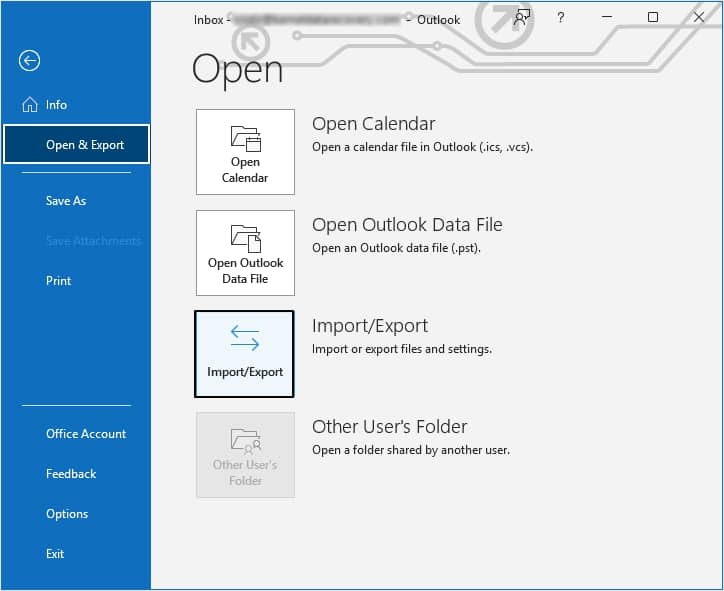
- On the File menu, click on the Open & Export tab. Now click on the Import/Export option.
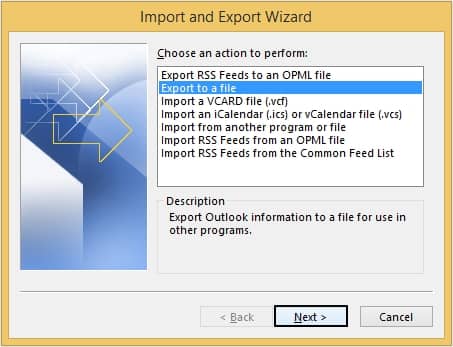
- Click Export to a file, and then click Next.
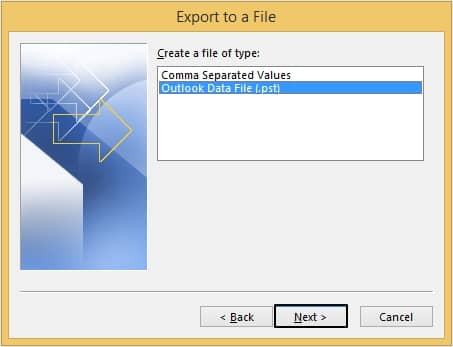
- Click Outlook Data File (.pst) and then Next button.
- Click the folder you want to export the .pst file to, and then click Next.
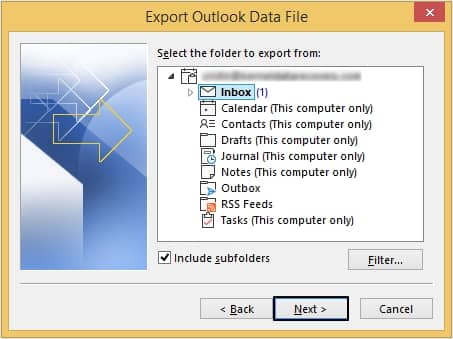
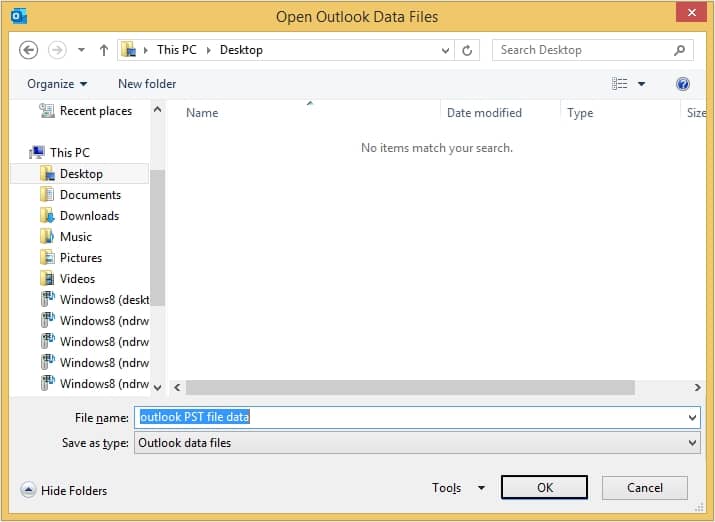
Note: Don’t forget to check the Include subfolders box if you want to include all the subfolders of the folder you have selected. - Click on Browse, and then select the location where you want to save the file.
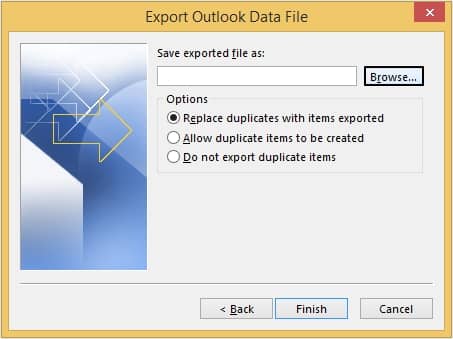
- In the File Name box, type the name you want to use for the new .pst file, and then click OK.
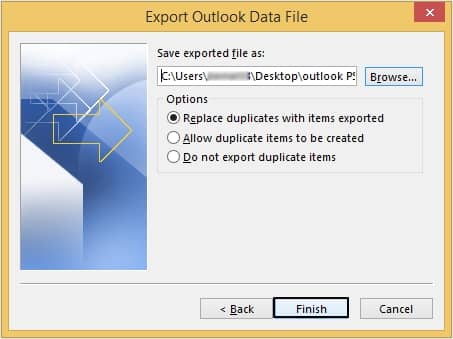
- Click Finish.
Export PST File with an Automated Tool
Exporting PST files manually can be a time-consuming and lengthy process. However, manual methods have some drawbacks and are not up to the mark. To save your time and avoid the risk of data loss, we recommend you use Kernel for Outlook PST Repair tool. It is an efficient tool that can export PST files to different email servers. The tool exports PST files with complete email properties, folder hierarchy, and structure
If somehow your PST file gets corrupted, then you can consider this software to repair Outlook PST file and save its data to multiple file formats. It ensures speedy and accurate recovery of PST file data. The PST repair tool also facilitates repairing password-protected, ANSI, and Unicode PST files. Also, it supports all Outlook versions.
Conclusion
When a user switches from one email platform or computer to another, they might need to export the PST file data. You can use the Import/Export option that Outlook offers to allow its users import and export an Outlook data file. However, you may face complications while implementing manual methods causing severe corruption in files. We suggest you a professional tool, i.e., Kernel for Outlook PST Repair tool to export PST file data effortlessly.