Attachment Processing

Kernel for Attachment Management: Attachment Processing

Kernel for Attachment Management: Attachment Processing

Attachment Processing is one of the main functionalities of Kernel for Attachment Management utility using which the software processes emails having attachments. The processed attachments are either saved to a folder on your computer's hard disk or in a folder at network drive. Saving processed attachments at network drive makes it easy to share them with coworkers. The software provides various options to perform an action on the processed attachments like one of the following:

  • Delete the attachment from email and save it at user-defined location
  • Delete the attachment from email, save it at user-defined location, and create a link in the respective email
  • Delete the attachment from email, save it at user-defined location, and create a text description in the respective email

The processed attachments can also be restored at their original location whenever required by using the "Restore Attachment" feature of the software.

Keep attachments links updated

Due to any reason, you may need to change the location of processed attachments. When location of the attachments is changed, their links/text descriptions specified in their respective email messages become useless. To keep those links/text descriptions effective and working, the "Update Link" option has been embedded in the software. When you select the "Update Link" option, the software prompts you to provide the old and new location and then replaces the old location with new location in email messages thus, keeps the links/text descriptions in email messages effective.

What are the benefits of processing attachments?

By using Kernel for Attachment Management to automatically process attachments, you can avail the following benefits:

  • Reduce the size of PST file and user's mailbox on Exchange Server
  • Improve the performance of MS Outlook
  • Thrash away the fear of issues that occur due to large size of PST file
  • Save attachments centrally on a network drive to share them with co workers
  • Save attachments at the more safe place than PST
  • Reattach the attachment when forwarding the email with processed attachment
  • Directly open the attachment in MS Outlook by clicking its link in email message
  • Create a hierarchy of sub-folders to save processed attachments

Working of Outlook Attachment Processor

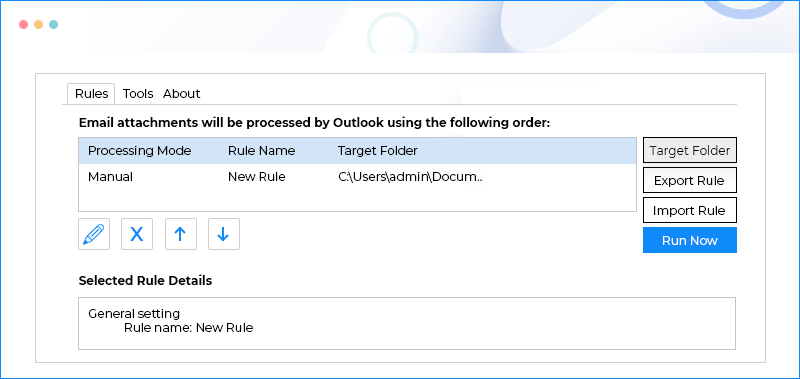
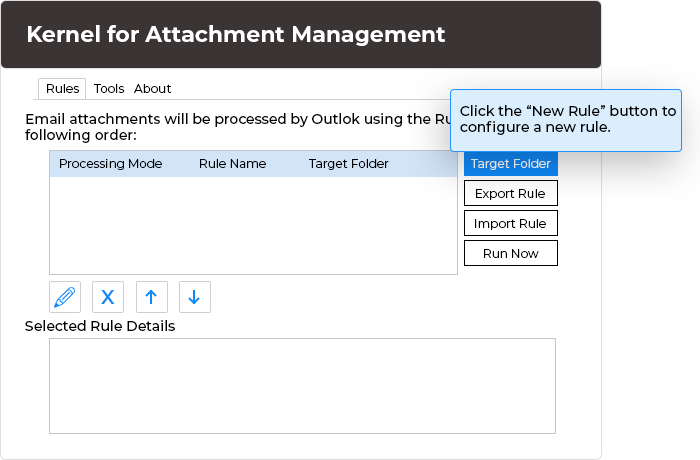
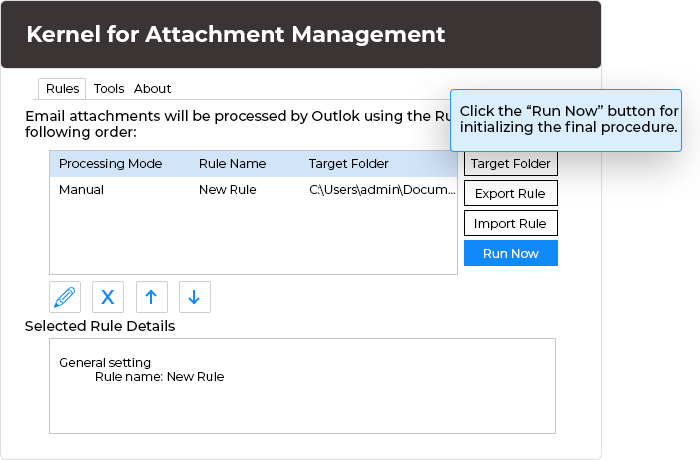
To take advantage of Kernel for Attachment Management, you need to create Attachment Processing rule. Depending on your requirements, one or more attachment processing rules can be created. The software provides "Enable automatic processing" option, which lets you automatically process attachments in incoming emails. You can select one or all folders in your mailbox to process the attachments.

The software has been designed to automatically process attachments at a scheduled time or manually at the time whenever required. By selecting the option to process attachments at a scheduled time after a specific interval, you can get rid of the worries of manually managing the size of PST and user's mailbox on Exchange Server.

While creating the attachment-processing rule, you can do the following:

  • Save the processed attachment at local computer or at network drive.
  • Select the "Enable automatic processing" option to automatically process the attachments in incoming emails.
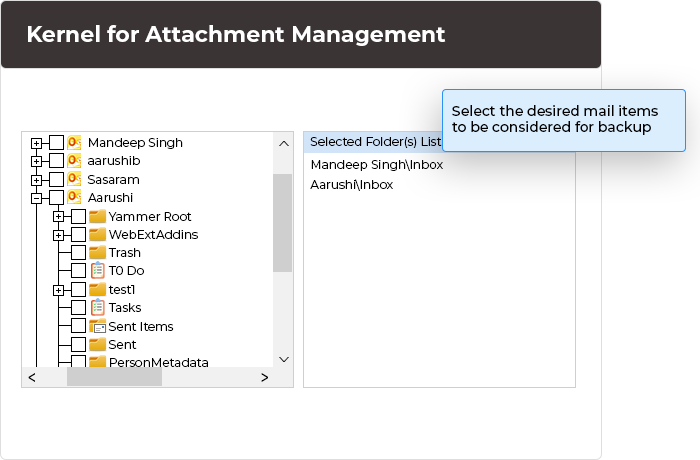
  • Select the mailbox whose attachments you want to process. For example, if you only want to process the attachments in Inbox and Sent Items folders then you can only select these folders and leave others as unselected.
  • Create sub-folder hierarchy at the destined location based on these variables: Message Folder Name, File Name, Message Date, Sender Name, Sender Email, Recipient Name, Recipient Email and Message Subject
  • Rename the processed attachments based on the these variables: Message Sender Name, Message Sender Email, Message Received Date, Message Subject, Message Subject without RE or FW and Add a unique count in the file name if it exist in zip format
  • Specify filter to process attachments based on these parameters: Process attachments according to message subject, Process attachments according to attachment name containing a specific text string, Only process embedded attachments,Process attachments based on size, Process attachments for specific senders only & Process attachments for specific recipients only
  • Take one of the these actions on the attachment if the file with the same name already exists at the user-defined location: Append a unique count in the file name, Do not save the file & Overwrite the file

See how attachment processing rules are created with Kernel for Attachment Management


Follow Us

Chat with our Support Executive